ipadでミキサー操作 | Controlling the Mixer Via Ipad
*写真は下記参照 | Pictures Below*
Connect to the Mixer:
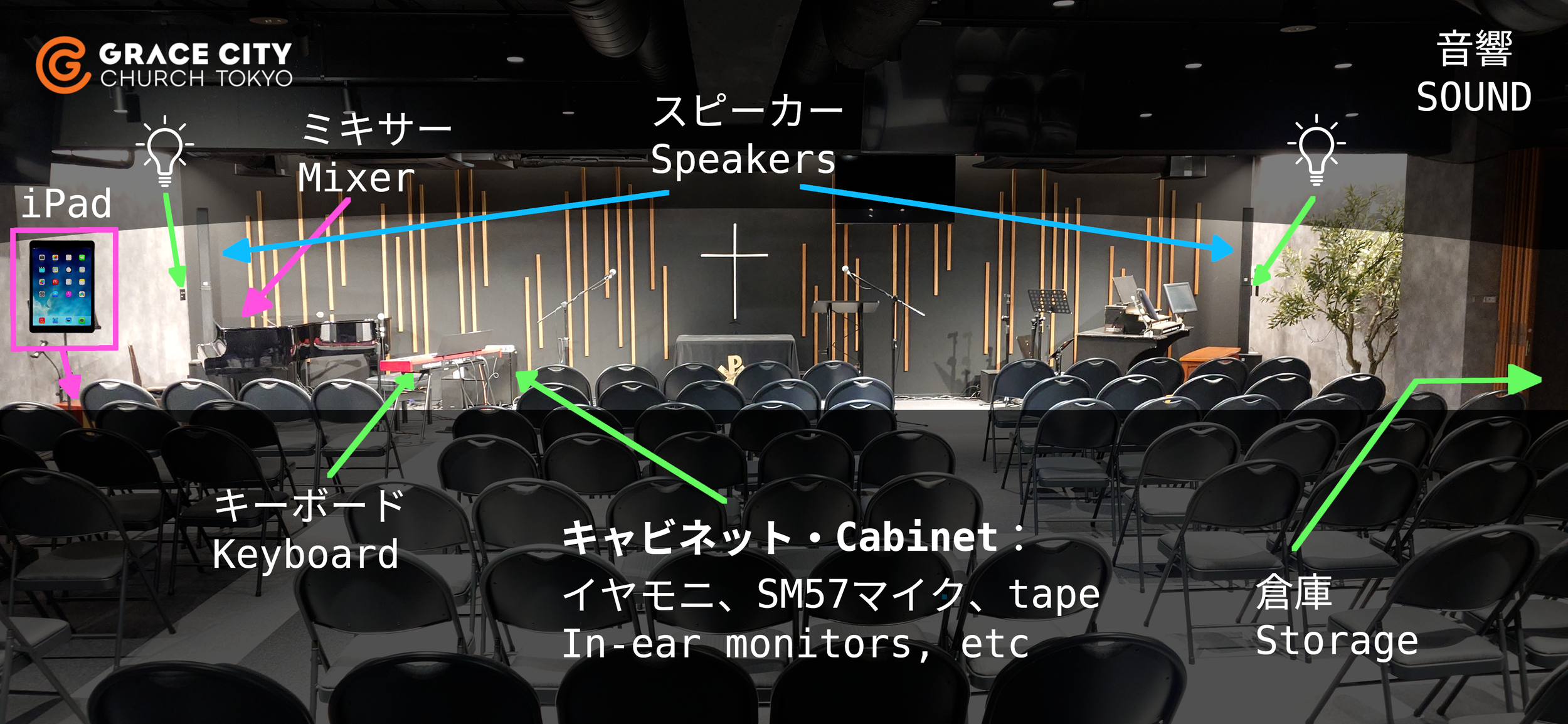
Get the iPad (code: 000000)
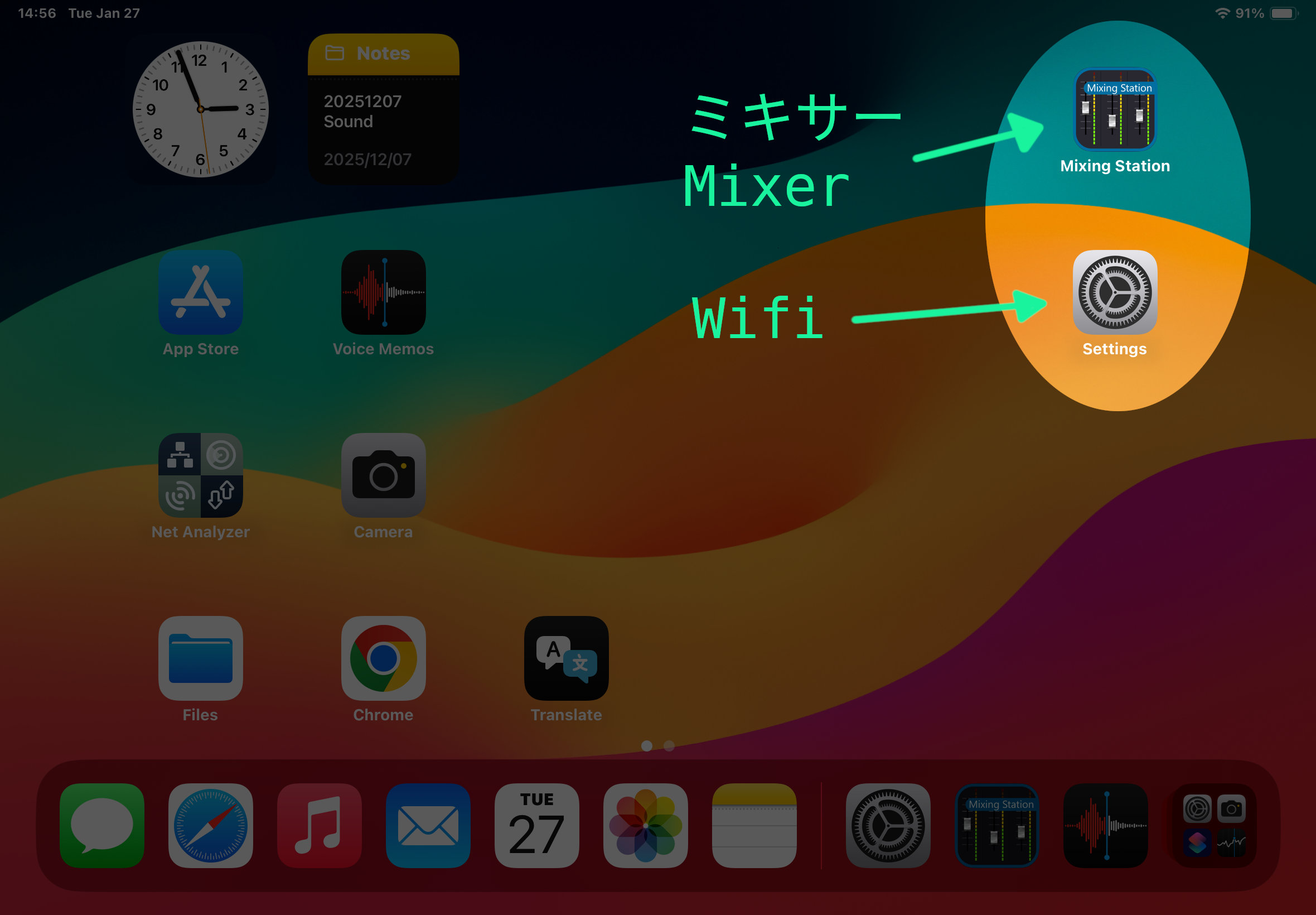
The Mixing Station app should already be open. If not, open it from the home screen.
Wait for it to reconnect & sync. Close and reopen the app if needed. (If it still won’t reconnect, turn the iPad’s wifi off and on)
Use the Mixer:
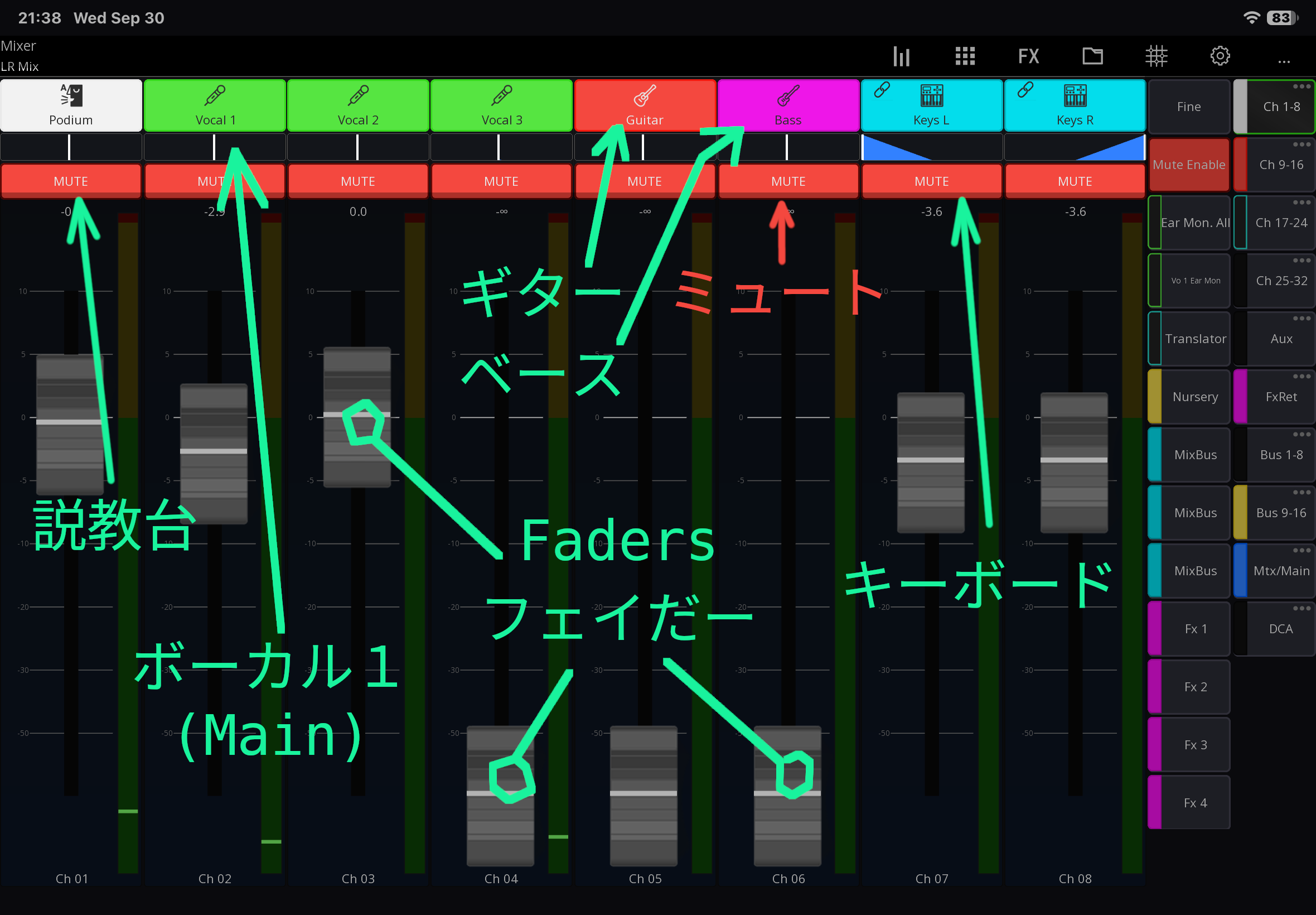
Unmute channels you want to use and adjust volume (Podium mic, Vocal mics, Keys, etc)
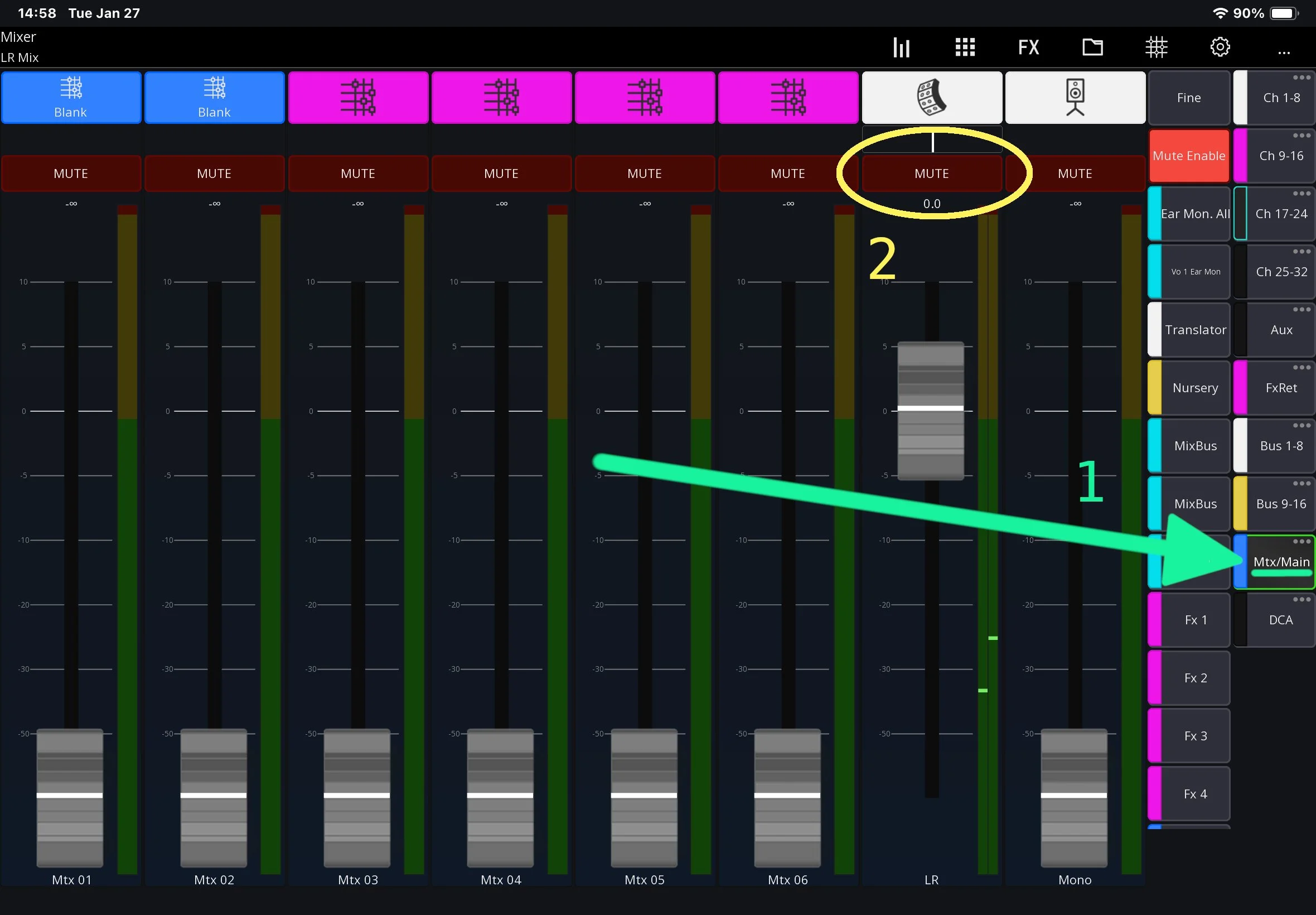
If no sound at all, check the main channel (Under Mtx/MAIN) isn’t muted.
ミキサーに接続する:
iPad を持ってくる。(コード:000000)
Mixing Stationというアプリが開く。開いていなければ、ホーム画面から起動する。
再接続と同期が終わるまで待つ。動かない場合はアプリを終了して開き直す。(もしどうしても再接続しない場合は、iPad の Wi‑Fi を一度オフにしてからオンにする)
ミキサーを操作する:
必要なチャンネル(説教台マイク:Podium、ボーカルマイク:Vocal 1,2,3、キーボード:Keysなど)のミュート(MUTE)を解除して、音量を調整する。
音が全然出ない場合は、メインチャンネル(Mtx/MAINの下にある)はミュートがOFFと確認する。